
Reporting Workflow
Review assigned cases and complete reporting in a consistent workflow.
Use these steps to review assigned cases, open the patient folder in Google Drive, complete cross sections and report PDFs, and then mark the case as Reported in Wave Imaging.
Access
Before you start
- Install the app on your main phone or tablet.
- Turn on push notifications from Settings > Push Notifications.
- Open My Cases and confirm you can see assigned work.
- Confirm that your Google Drive access is active for the case folders shared by the centre team.
Use Wave Imaging to review assigned cases and confirm status. Prepare cross sections and report PDFs in Google Drive.
Case Queue
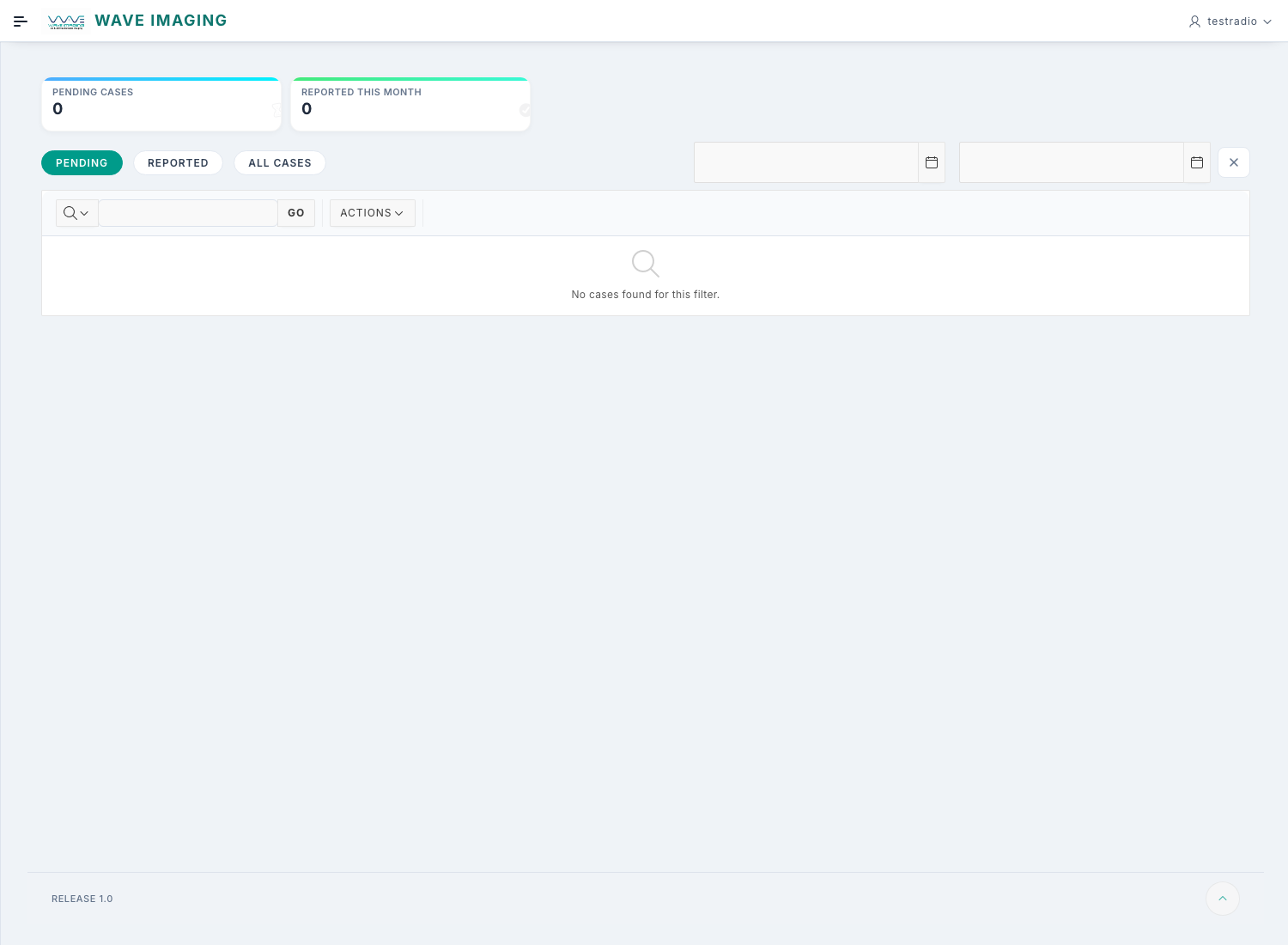
Review assigned cases in My Cases
- View date, patient, doctor, service, priority, and status.
- Filter by Pending or Reported.
- Filter by date range when checking older work.
- Use priority and allotment time to decide the reading order.
Primary queue
My Cases is the working list for assigned reporting work.
Working view
Start with Pending and review urgent or older assignments first.
Study Folder
Open the Google Drive study folder
- From My Cases, open the Google Drive link provided by the technician.
- Review the uploaded image set and related study material.
- If cross sections already exist, open them from the same patient folder or approved subfolder.
- If a link does not open or access is missing, ask the centre team to verify the saved link and folder sharing.
Radiologists are expected to have prior access to the relevant Google Drive folders used by the centres.
Reporting
Prepare cross sections and report files
- Open the case folder in Google Drive.
- Create the required cross sections and the final report PDF.
- Save the output in the same patient folder or in the approved related folder structure for that patient.
- Confirm that the final files are correctly placed and accessible.
Do not enter report content inside Wave Imaging for this workflow. Keep the final deliverables in Google Drive.
Progress
Mark the case as reported in the app
After the report PDF is ready in Google Drive:
- Return to My Cases.
- Locate the correct case.
- Use the status action to move the case from Pending to Reported.
Mark a case as Reported only after the required report files are available in the correct Drive location.
Handoff
What happens next
After you mark the case as Reported
The technician can proceed from the Tests screen in Wave Imaging.
The technician can proceed from the Tests screen in Wave Imaging.
Technician actions
The technician prints the report and sends the WhatsApp communication from the operational screen.
The technician prints the report and sends the WhatsApp communication from the operational screen.
Your role in the app
For this workflow, the radiologist uses Wave Imaging for assignment review and final status confirmation only.
For this workflow, the radiologist uses Wave Imaging for assignment review and final status confirmation only.