
First-Time Setup
Set up your device and start using Wave Imaging.
Follow these steps the first time you sign in, or whenever you start using a new phone, tablet, or laptop.
Step 1
Log in
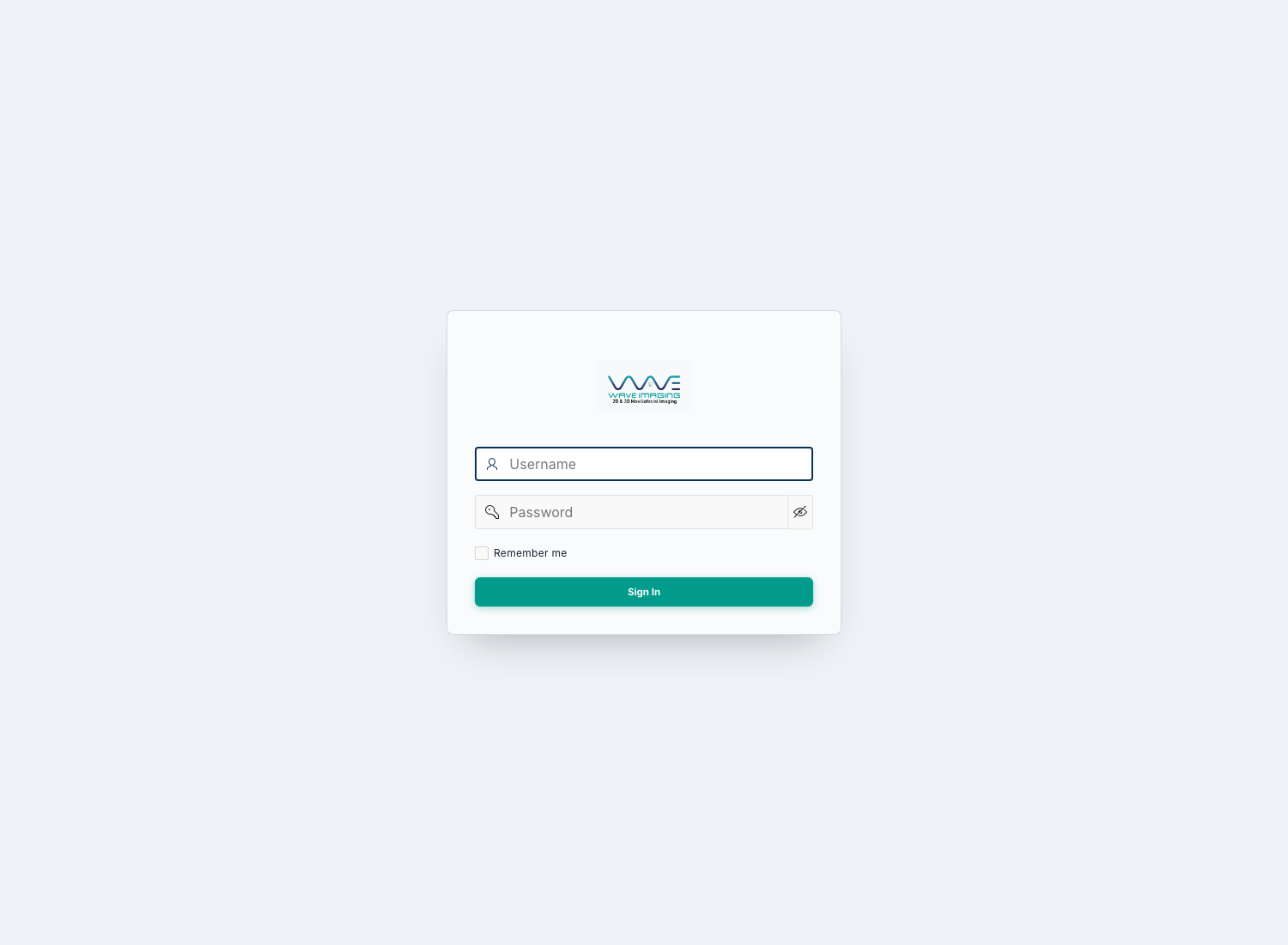
- Open the Wave Imaging app link.
- Enter your username and password.
- Tap or click Log In.
- You will land on the home screen for your role.
Search slowly and type carefully. Most first-login issues are simple
username or password mistakes.
Step 2
Install the app on Android
- Open the app in Chrome.
- Tap Install App in the app header if it appears.
- If needed, use the Chrome menu and choose Install app or Add to Home screen.
- Tap Install.
- Open Wave Imaging from your Home Screen like a normal app.
Installing the app makes daily access faster and usually improves notification reliability.
Step 3
Install the app on iPhone / iPad
- Open the app in Safari.
- Tap the Share button.
- Tap Add to Home Screen.
- Tap Add.
- Open Wave Imaging from your Home Screen.
For iPhone / iPad notifications, use the Home Screen version of the app.
Step 4
Turn on push notifications
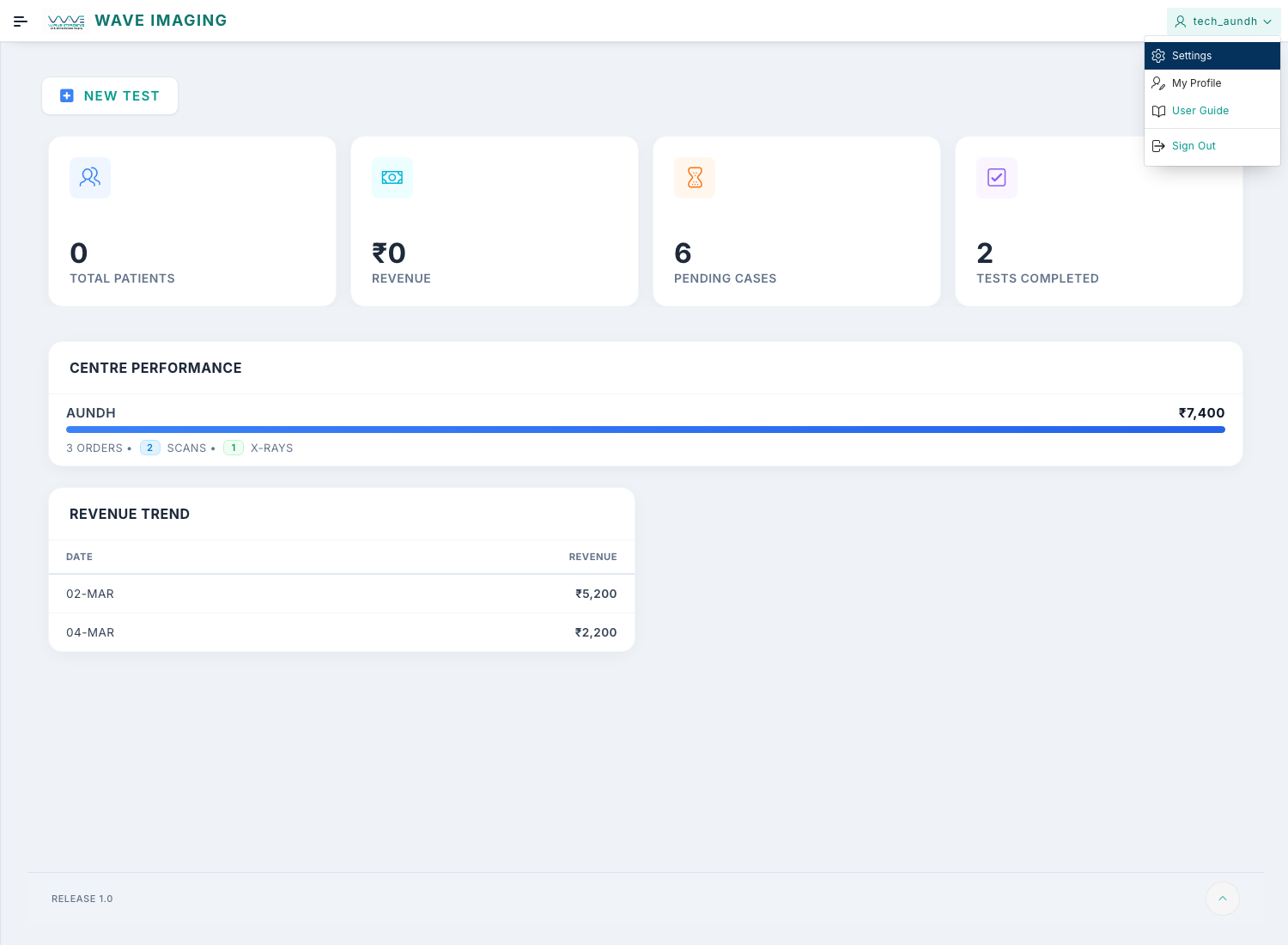
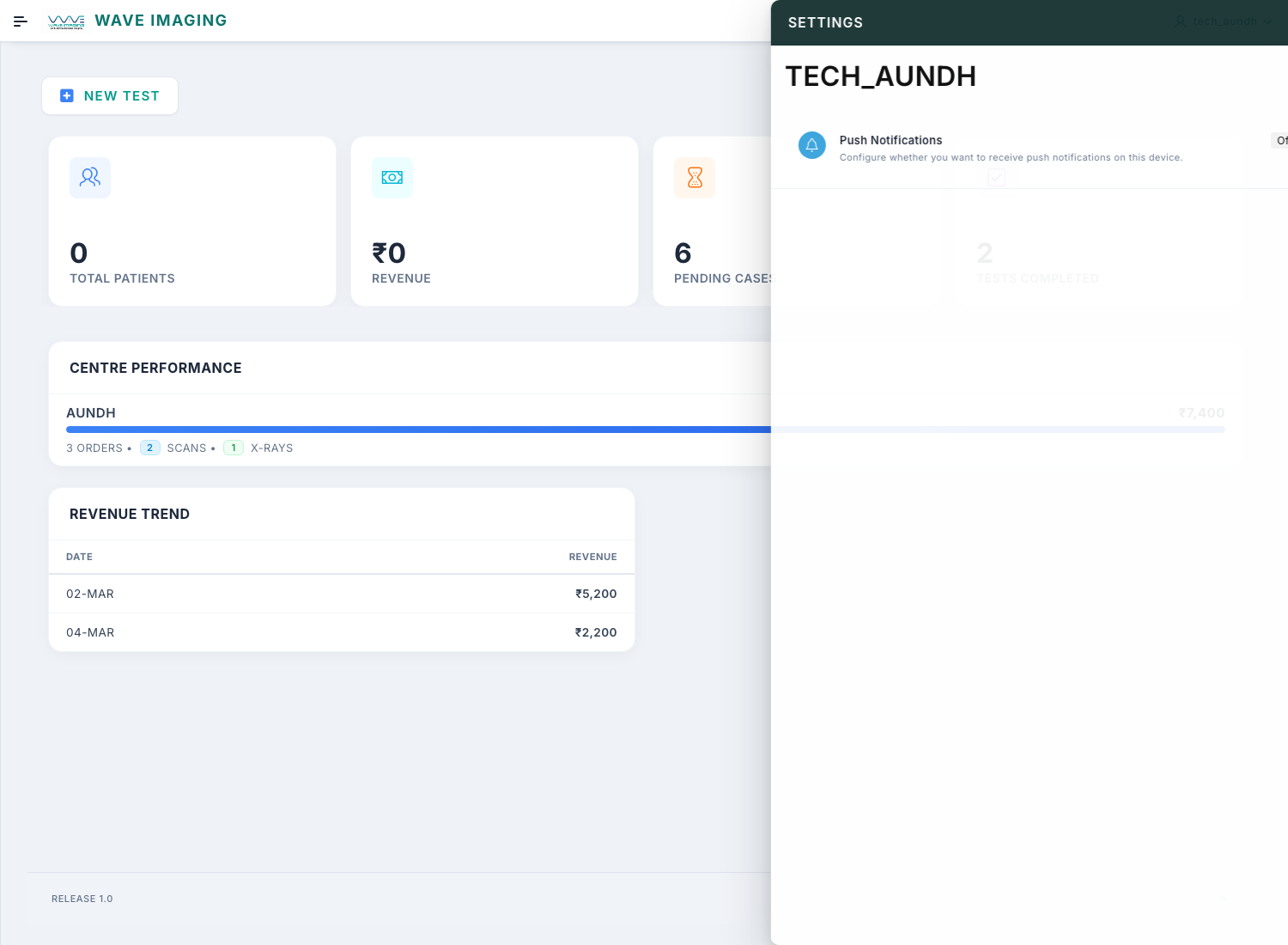
- Open the user menu in the top-right corner.
- Open Settings.
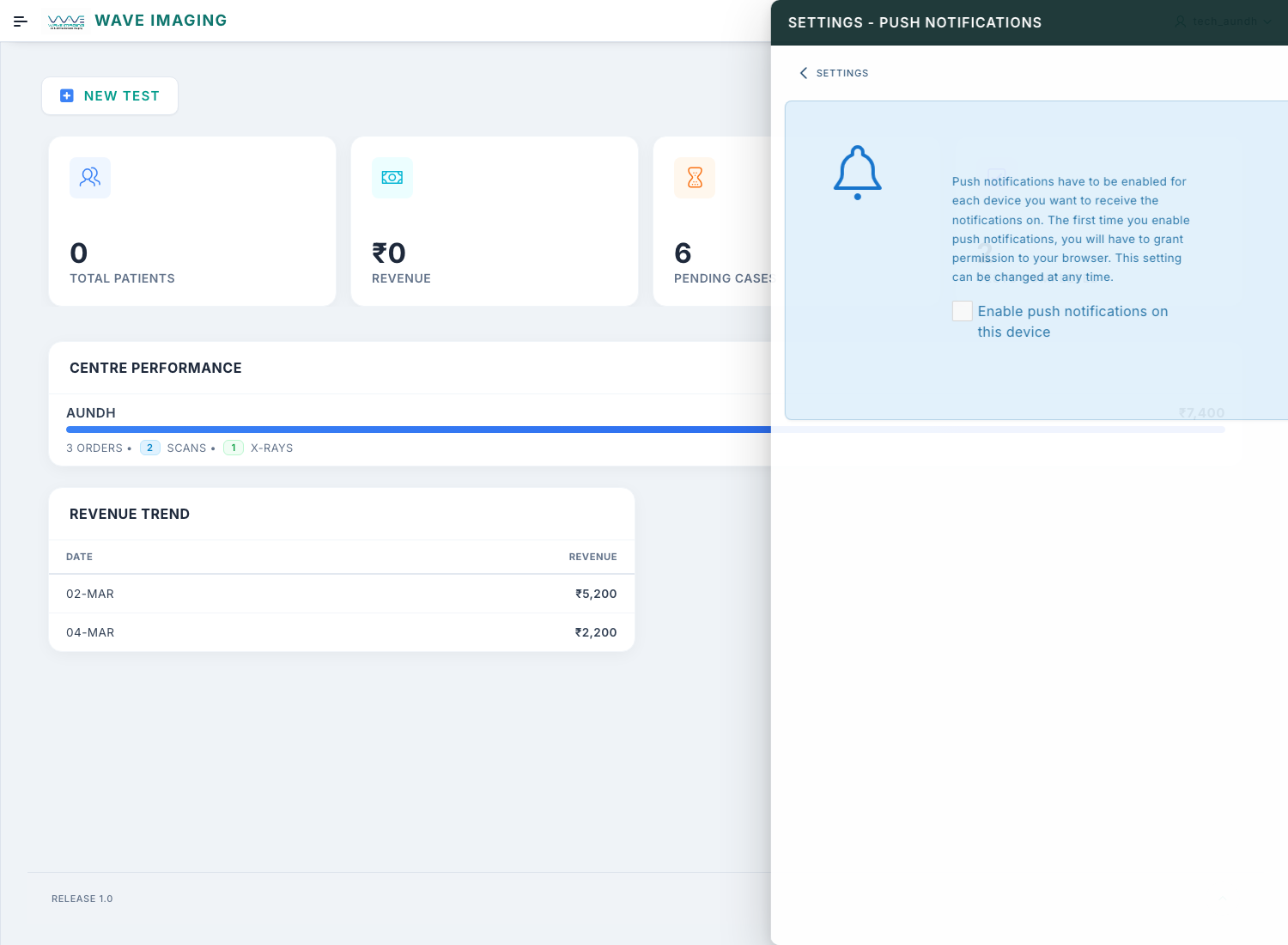
- Open Push Notifications.
- Turn on Enable push notifications on this device.
- Allow notifications when your browser asks for permission.
Important
Notifications are enabled per device, not per user only.
If you use two devices
Enable notifications separately on both phone and laptop.
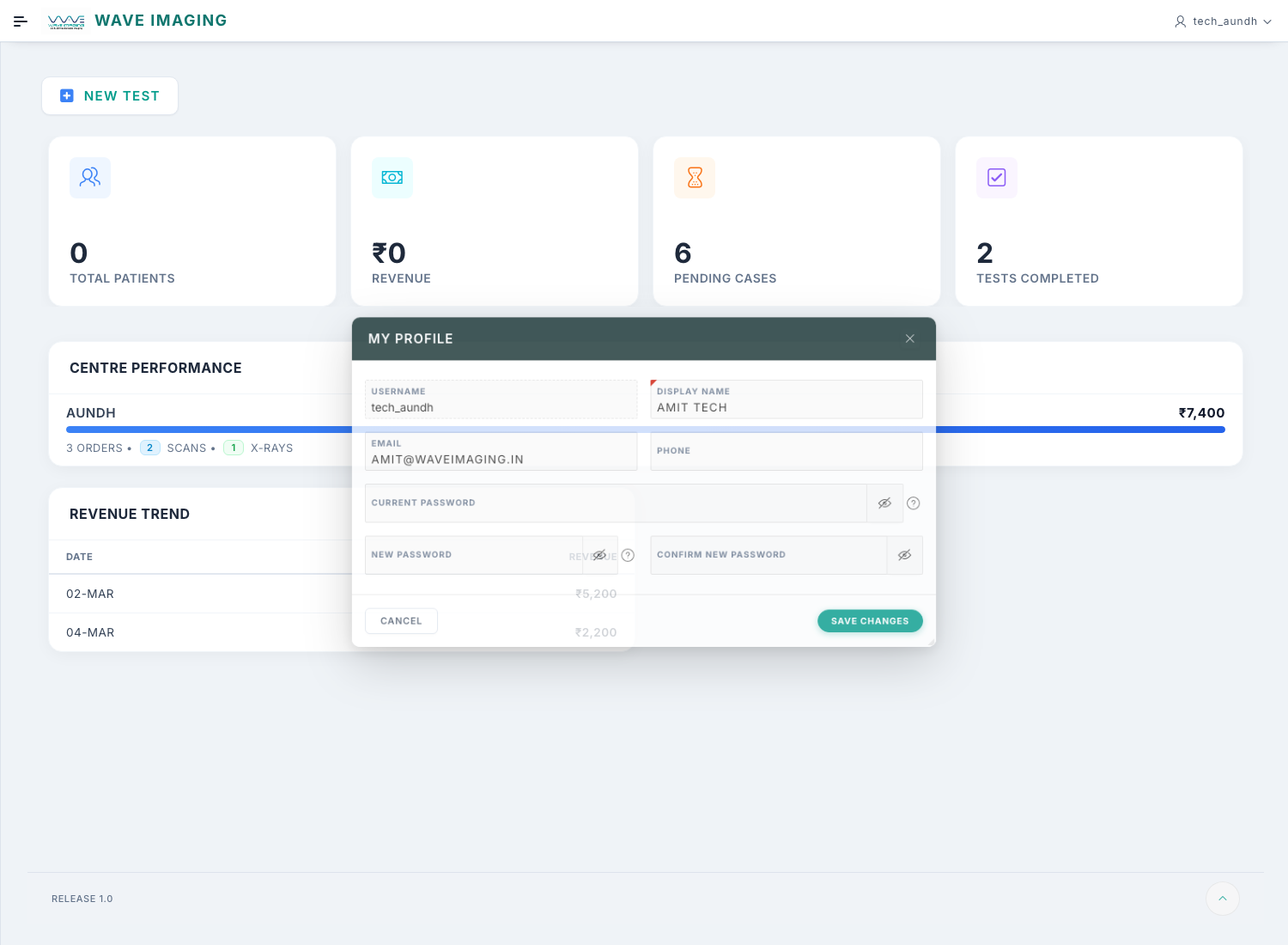
Step 5
Update your profile
- Open the user menu in the top-right corner.
- Open My Profile.
- Update display name, email, phone, or password if needed.
- Click Save Changes.
Keep your phone number updated if your centre depends on urgent communication.
If Something Does Not Work
Common issues
Page not loading
Refresh once and sign in again.
Refresh once and sign in again.
Install option missing on iPhone
Use Safari, not another browser.
Use Safari, not another browser.
No notifications on iPhone
Confirm the app was added to the Home Screen and notifications are allowed.
Confirm the app was added to the Home Screen and notifications are allowed.
Wrong screen after login
Ask your support team to check your role access.
Ask your support team to check your role access.
Shared centre computer
Always sign out before leaving your desk.
Always sign out before leaving your desk.